Searching in Qvidian for Web
Searching in Qvidian for Web is similar to performing a Library search or using AutoFill and Search Mode in Projects. Functionality, such as Boolean searching, tri-state checkboxes, and search filters and fields, match those found in AutoFill and Search Mode.
General Searching
From the Qvidian sidebar, you can directly search the Qvidian library by either selecting existing text from the questionnaire or manually typing in custom search terms.
- Click the Menu
 icon and select Library.
 - To search using existing text:
- In Excel: Select a cell that contains a question and click the Search on selected text
 icon.
icon. - In Word: Click anywhere in the paragraph of a question or highlight the question text and click the Search on selected text icon.
- In PowerPoint: Click anywhere in the slide that contains a question and click the Search on selected text icon.
- In Excel: Select a cell that contains a question and click the Search on selected text
- To search custom terms, enter any words into the Search box and click the Search
 icon.
icon.
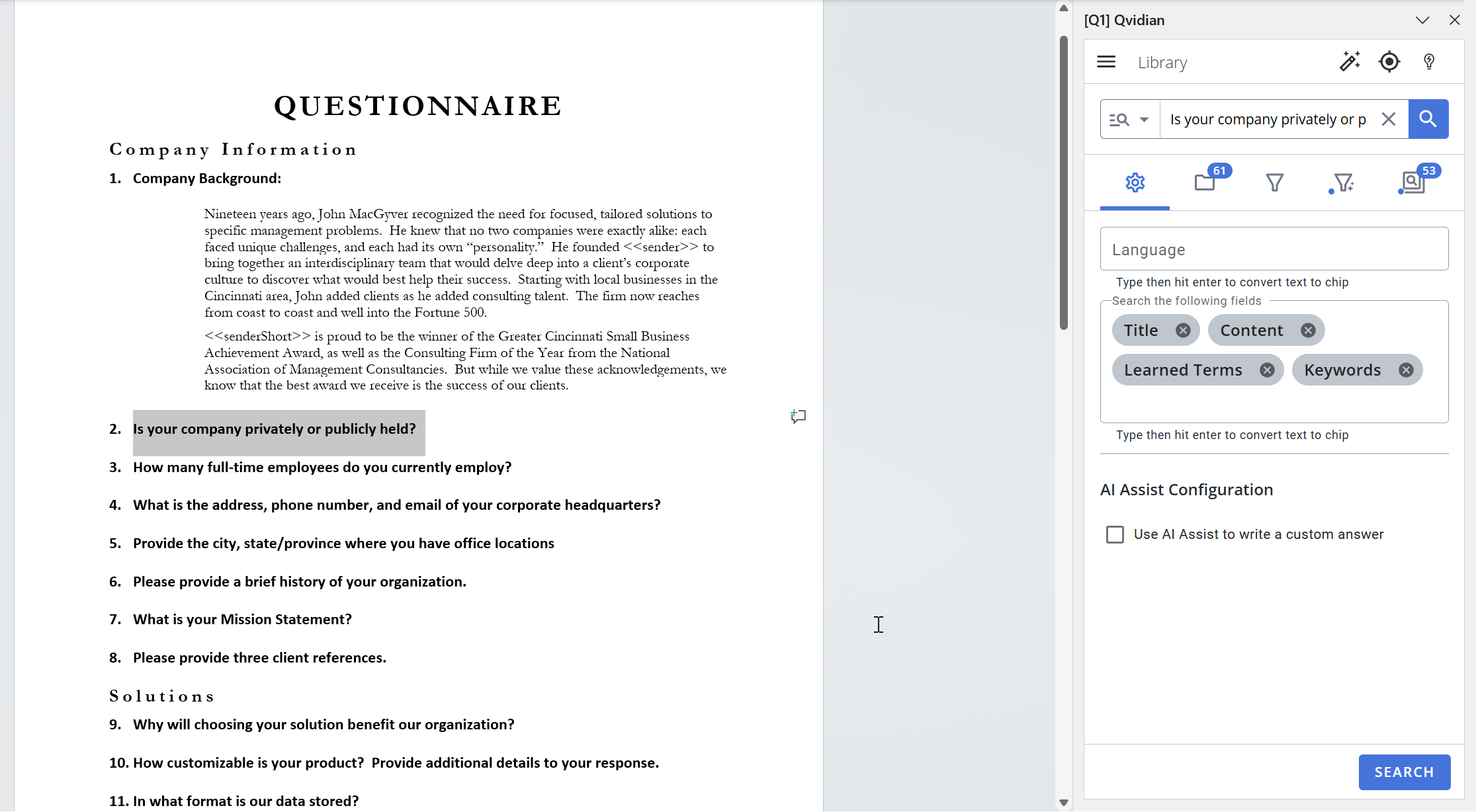
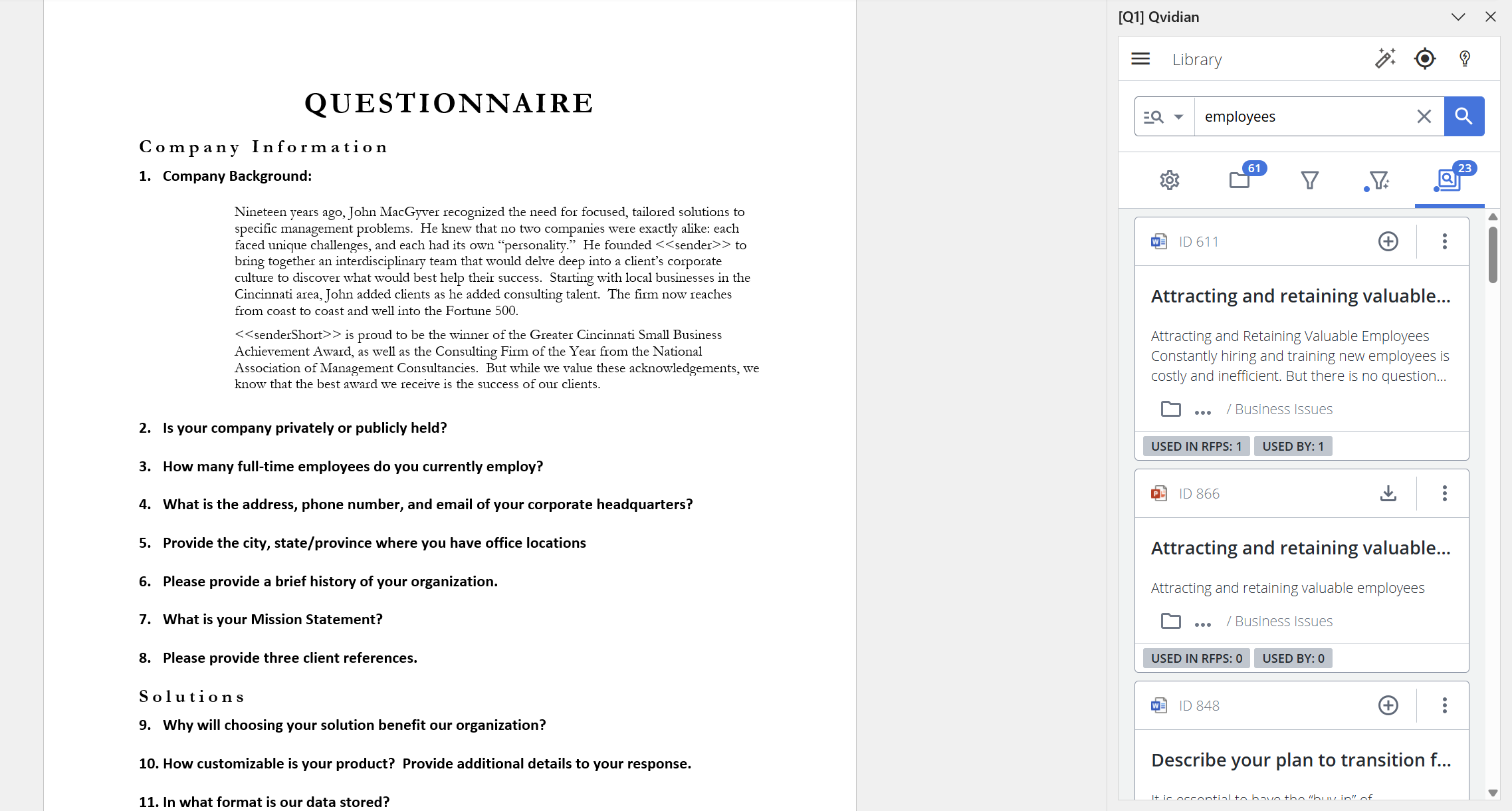
Note: To clear the Search box, click the X in the field.
Caution: Search results displayed in bold, red text are Expired Library content. If a search foes not return results, Qvidian will display "No Results Found."
Caution: Some sites, like Google Docs, Sheets, and Slides prevent Qvidian from writing scripts to the page, which prevents Qvidian from capturing the highlighted text (these sites will require you to manually copy the text and paste it into the Search field). Other functionality is unaffected. Due to some modern design principles, some online RFP portals may have question text that is not selectable (in these instances, you must type the appropriate text into the Search field).
Note: For more information on saved searches, see Saved Searches and History.
Search Settings
- Click the Settings tab to display all available search settings. For more information, see Search Mode Settings.
Note: If generated content is being used to answer questions, select the Use AI Assist to write a custom answer checkbox. For more information, see AI Assist in Qvidian for Office.
Tip: To display more information in the Results tab of the Search panel, see Configure Results Display.
Searching with Filters
Refine your search results with filters. Standard filters limit results to showing only records that contain one or more of the search terms in their Title, Learned Terms, Keywords, or Content Text. Advanced filters can leverage any available content record metadata field, including custom meta data fields (e.g., Language, Expiration Date, etc.).
- Click the Menu icon and select Library.
- Once you've selected existing text or entered custom terms, select the Filters tab to access search filters.
Note: For more information on using search filters, see Search Mode Filters.
 Using Suggested Filters
When you run a search, Upland Qvidian reviews the search result and recommends filters based on any Custom metadata fields that differentiate the search results. The Suggested tab lists the suggested filters. Suggested filters (which can be applied to the search) display by the metadata field name, the list of values relevant to the current result set, and a count of the records in the results with these values. Administrators can configure the minimum and maximum number of values a field should have for the current result set to be shown as a Suggested Filter—the default range is between 2 and 10 values.
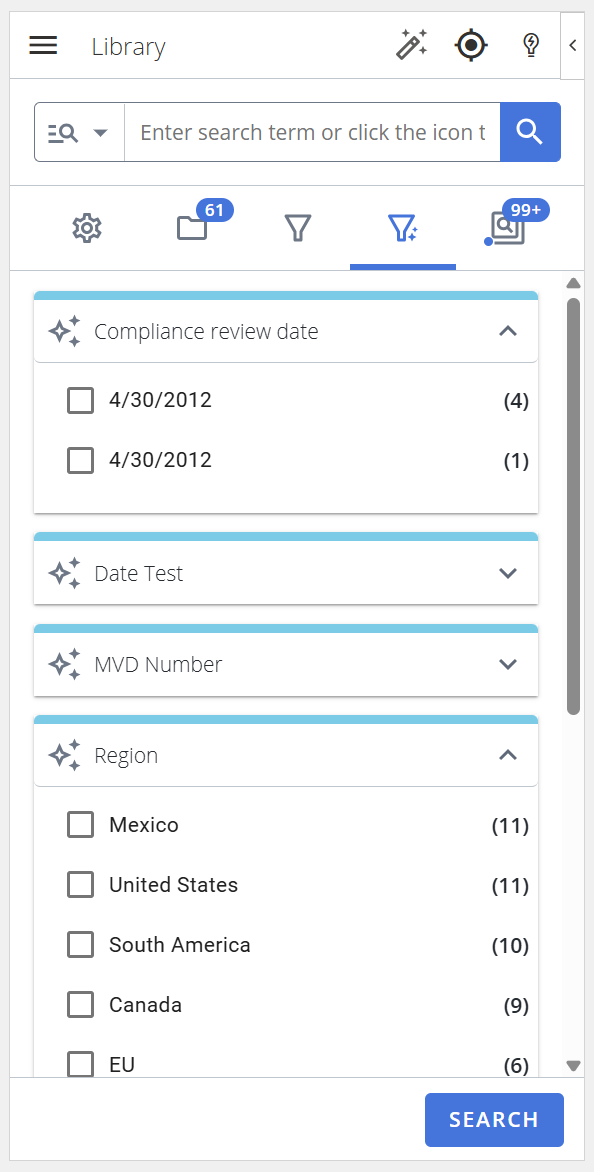
This shows the suggested compliance review date and region filters.
Example: If Qvidian detected that records in your results had the custom metadata field “Region,” Qvidian would suggest the “Region” filter. From there, the user could pick from the regions shown to refine their search results. If Qvidian detected that records in your results had the custom metadata field “Language,” Qvidian would suggest the “Language” filter. From there, the user could pick from the languages shown to refine their search results.
Note: The following suggested filter Global Settings are enabled by default: "EnableLibraryContentSuggestedFilters", "LibraryContentSuggestedFiltersMaxOptions", and "LibraryContentSuggestedFiltersMinOptions". The following user permission must be enabled to use suggested filters: "Allow User to use Search Mode in Projects".
- Perform a search on a particular slice/cell or enter a search term directly into the Search field.
- Click the blue Suggested Filters tab.
- Select the checkboxes of any desired Suggested Filters.
- Click Search.
Searching with Folders
Refine your search results with folders. Folders provide a simplified view of your Qvidian content library. You can limit your searches to specific folders by expanding and collapsing folders, and including and/or excluding folders.
- Click the Menu icon and select Library.
- Once you've selected existing text or entered custom terms, select the Folders tab to limit your search to particular folders.
Note: For more information on using search filters, see Search Mode Folders.